

Step 1: Get your environment set up to create and build macOS apps with React Native
Before you can build any React Native macOS app, you’ll need to install several system dependencies (homebrew, node, watchman, Xcode, etc.). Depending on your starting point, this can take a while (i.e., an hour or more) and may require one or more reboots of your system. Most of this can happen in the background while you’re working on other things.
If you’ve already done React Native work for iOS (or are interested in starting), here’s an exciting sentence from Microsoft’s React Native macOS system requirements docs:
If you’re all up to date on those dependencies, at least for React Native CLI, you should already be good to go (more related to this later). I hadn’t worked on a project in a while, so I went ahead and re-upped my environment.
While Microsoft’s docs are decent, I’d recommend using the React Native team’s docs for iOS. Once there, select “React Native CLI Quickstart” instructions), as they are a bit more exhaustive and give a little more help just in case anything goes sideways in the setup.
Step 2: Create, build, and run the app
Once your environment is ready to go, creating a React Native app for macOS is a few relatively simple steps from the terminal
NOTE: at the time of publication due to version support, you’ll get redirected to this page.
- Initialize your app project –
npx react-native init <projectName> --version 0.62.0
- Setup to build macOS applications (from the new project directory) –
npx react-native-macos-init
- Run the app either from the command line or from Xcode. From my experience working on React Native iOS, I’d recommend the latter, which is likely as simple as (from the new project directory) –
open ./macos/<projectName>.xcworkspace
- Initialize your app project –
Once Xcode is loaded, and your workspace files are indexed, you should see something like this:
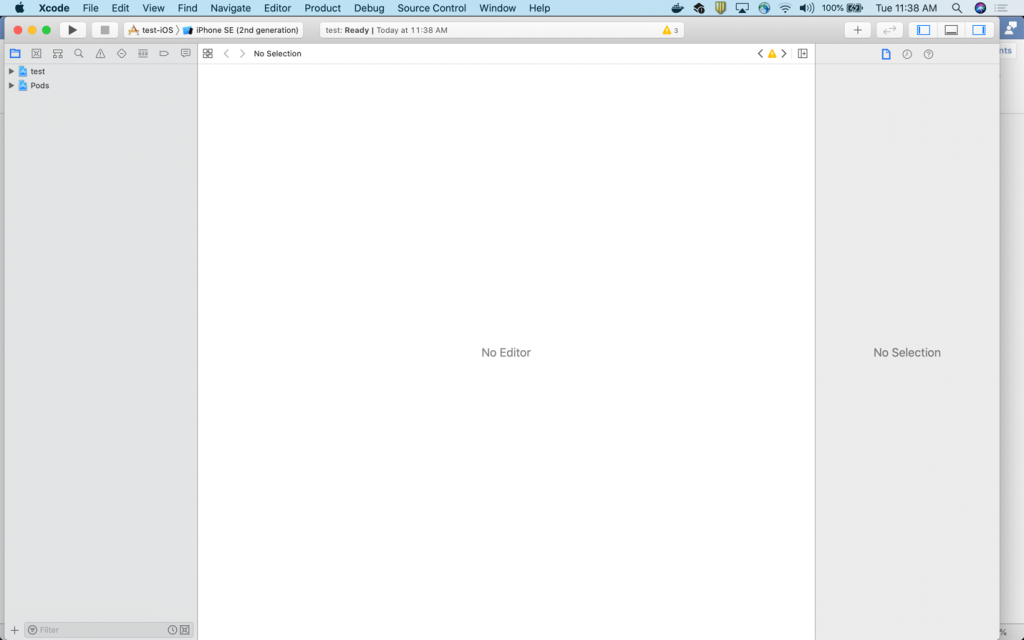
To build your demo app, all you need to do is perform these two steps:
1. Choose macOS (instead of the default iOS) as your build target.
- Before:

- After:

2. “Run” the project (this will automatically build the project if it’s unbuilt) by choosing “Product -> Run” from the menu.
When you’re all done, you should have a running React Native macOS app! Here’s what the default one should look like:

Gotchas
- While you’re building the project, make sure you’re aware of and keep an eye on the terminal running the metro bundler (link: https://facebook.github.io/metro/), since bundling your application’s JavaScript can take some time, and it may look like your build/launch is hung when it’s not. For example, even after Xcode reports “Build Successful” the app isn’t necessarily done being built, since Metro may still be bundling in the background.
- For both the build and the running app, you will likely see warnings. You can probably ignore these.
- Sometimes when iterating on building and running the app, I noticed the app would fail to launch/load. Please do a full clean+rebuild+re-run and you’ll generally have your issue resolved.
Bonus
Since the environment setup was identical and since the OS-level APIs and general app development across Apple’s operating systems (e.g., iOS, macOS) are made to be as similar as possible, I went ahead and tried an experiment. Without changing the project setup, I targeted an iOS iPad 7th generation for my build target (instead of macOS), cleaned, and re-built/re-ran. And guess what? It just worked!

Now, I would not recommend this as the way you should target an iOS build (as opposed to setting up the React Native project for iOS). However, it is very promising when it comes to a) supporting and maintaining React Native for macOS itself, and b) Native Modules development (core, 3rd party, or your project-specific code). In a world where an application needs to straddle many different target environments, this is very promising for writing less environment-specific code and more reusable code across environments!
